> ## Documentation Index
> Fetch the complete documentation index at: https://kino.ai/docs/llms.txt
> Use this file to discover all available pages before exploring further.

# Motion Graphics

> Automatic animations, titles, and visual effects through conversation

<Frame>
  <img className="rounded-xl" src="https://mintcdn.com/kinoai/invWqWs9Iqr-D_xP/images/screenshots/performance-chart-editing-with-background.png?fit=max&auto=format&n=invWqWs9Iqr-D_xP&q=85&s=8c4b3a83913e38545bc0996cc3771ddb" alt="performance chart editing" width="1920" height="1080" data-path="images/screenshots/performance-chart-editing-with-background.png" />
</Frame>

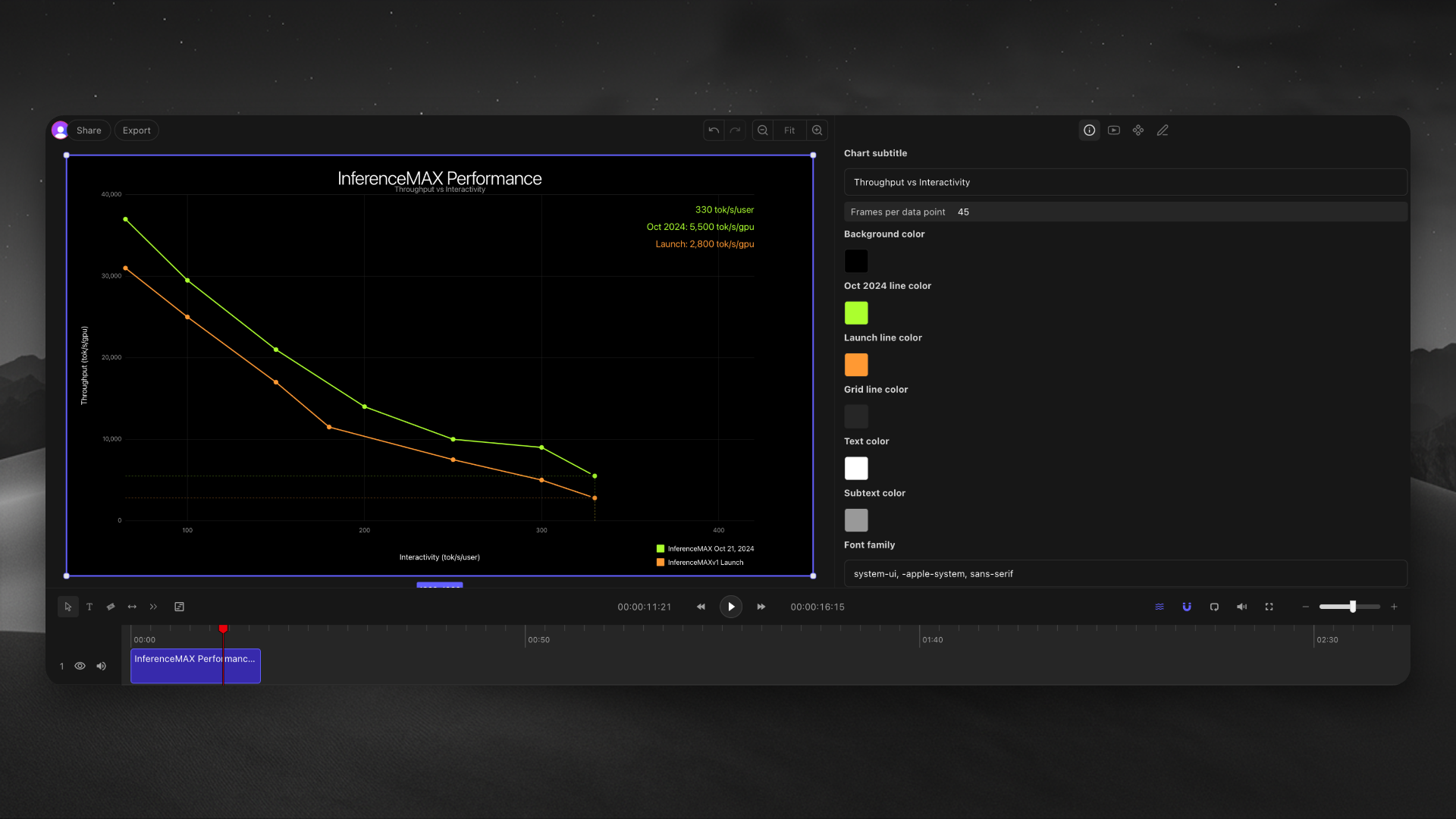
Tell Kino what you need. It creates the animation and adds it to your timeline. Then revise it in chat: "make it faster," "change the color," or "add a drop shadow." You can paste reference images or videos to match a style.
<Tabs>
  <Tab title="Animated data visualizations">
    <div className="chat-example">
      <div className="chat-user">
        <img className="rounded-xl" src="https://mintcdn.com/kinoai/invWqWs9Iqr-D_xP/images/screenshots/performance-improvement-graph.png?fit=max&auto=format&n=invWqWs9Iqr-D_xP&q=85&s=2a1fedf93ea1ef1b91f6a4c19dc9bb7c" alt="performance improvement graph" style={{maxWidth: '200px'}} width="1186" height="1762" data-path="images/screenshots/performance-improvement-graph.png" />

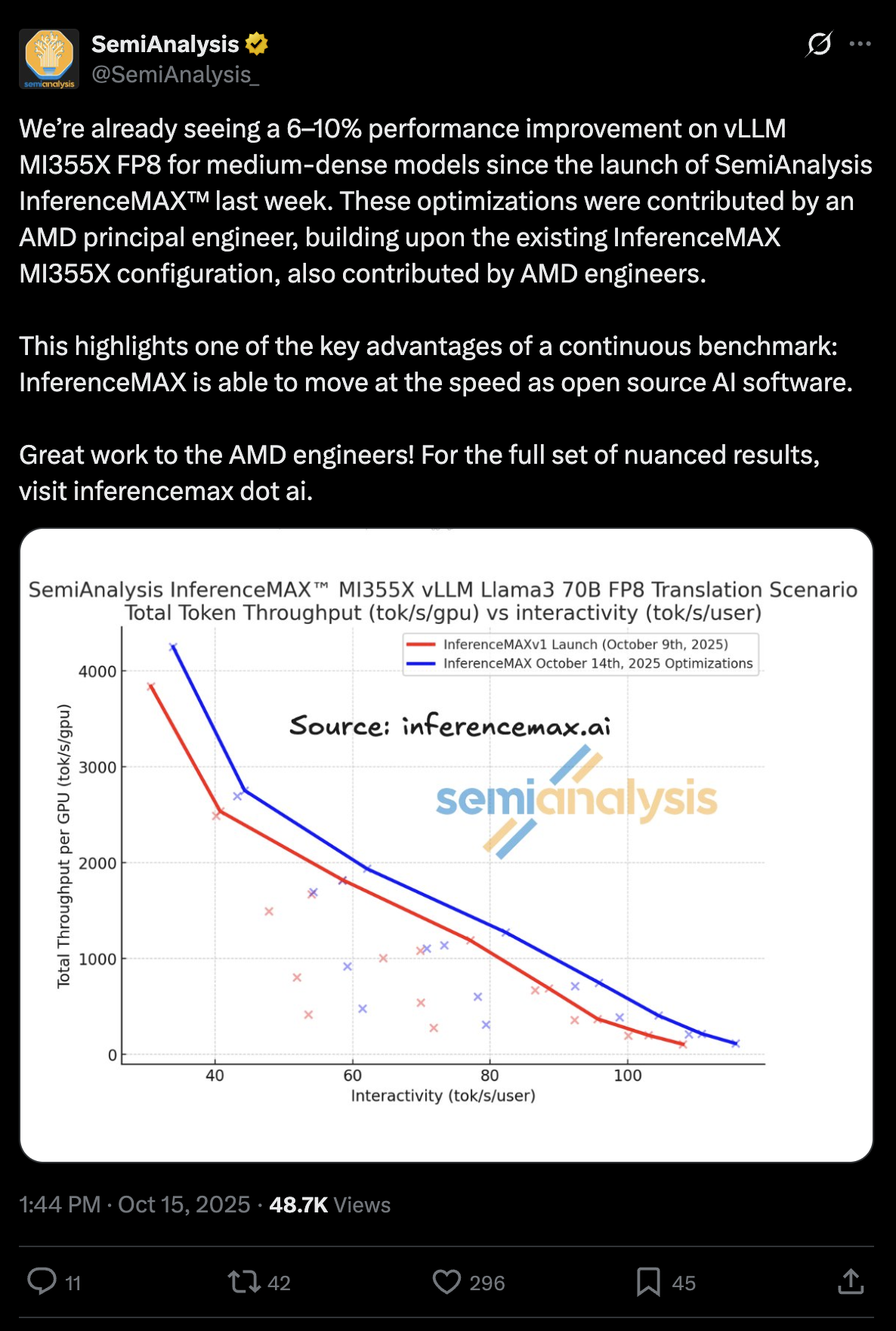
        See attached tweet from SemiAnalysis and make a dark mode semi transparent horizontal animated graphic of this data, match rest of my project's color scheme
      </div>

      <div className="chat-kino">Done! I've created a dark mode animated graphic with your brand colors.</div>
    </div>

    The graphic animates on the timeline. You can adjust speed and transparency in the inspector.
  </Tab>

  <Tab title="Replicating UI">
    <div className="chat-example">
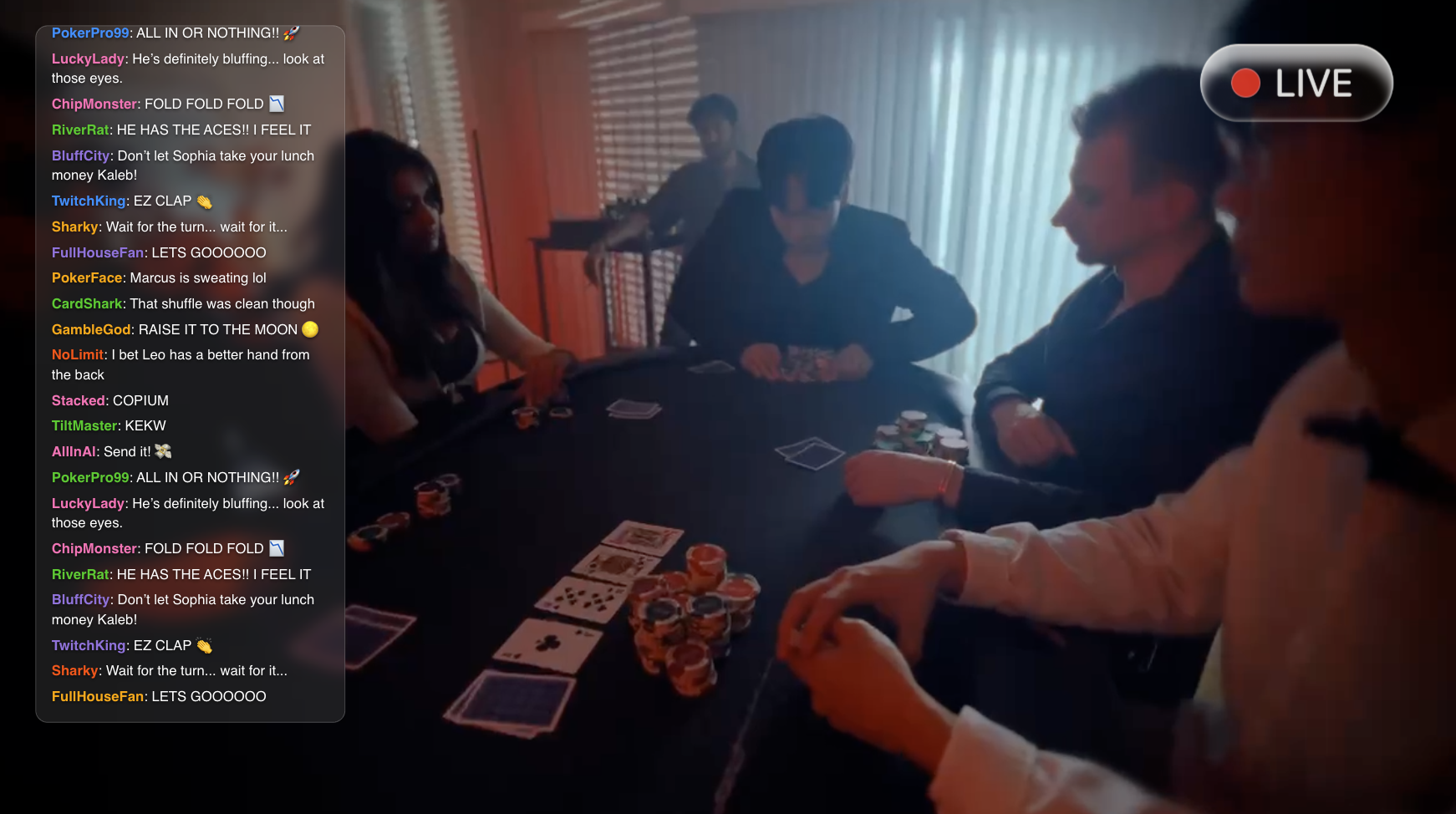
      <div className="chat-user">Selected main character playing poker. Make very fast Twitch chat that eggs him on in his glasses based heads up display.</div>
      <div className="chat-kino">I've added a green Twitch chat HUD overlay with Courier text, scan lines, and fast messages like "ALL IN OR NOTHING" and "EZ CLAP."</div>
    </div>

    <Frame>
      <img className="rounded-xl" src="https://mintcdn.com/kinoai/invWqWs9Iqr-D_xP/images/screenshots/live-poker-stream.png?fit=max&auto=format&n=invWqWs9Iqr-D_xP&q=85&s=10022f714e870b28a9be76cedc0cd095" alt="live poker stream" width="1742" height="974" data-path="images/screenshots/live-poker-stream.png" />
    </Frame>
  </Tab>

  <Tab title="Lower thirds">
    <div className="chat-example">
      <div className="chat-user">Make a lower third for Sarah Chen, CEO</div>
      <div className="chat-kino">Created a lower third with her name and title. It slides in from the left and has a subtle gradient background. Want me to match your brand colors?</div>
    </div>
  </Tab>

  <Tab title="Visual effects">
    <div className="chat-example">
      <div className="chat-user">Add a particle effect behind the logo, something like floating dust in sunlight</div>
      <div className="chat-kino">Added floating particles behind your logo. They drift slowly upward with a warm golden tint. You can adjust density and speed in the inspector.</div>
    </div>
  </Tab>
</Tabs>

***

## What you can create

<CardGroup cols={2}>
  <Card horizontal title="Animated titles" icon="type">
    Typewriter effects, fade-ins, kinetic typography, and animated headlines.
  </Card>

  <Card horizontal title="Lower thirds" icon="subtitles">
    Name supers, speaker IDs, and location tags.
  </Card>

  <Card horizontal title="Backgrounds" icon="layers">
    Gradients, patterns, animated textures, and abstract visuals.
  </Card>

  <Card horizontal title="Particle effects" icon="sparkles">
    Dust, snow, confetti, embers, and bokeh.
  </Card>

  <Card horizontal title="Shapes and graphics" icon="shapes">
    Animated shapes, callouts, arrows, and highlights.
  </Card>

  <Card horizontal title="Transitions" icon="arrow-right">
    Custom wipes, reveals, and transitions between scenes. Beyond the built-in presets.
  </Card>
</CardGroup>

***

## Iterate through conversation

Every motion graphic is editable through chat. Describe the change you want, then use the inspector for exact values.

<Tabs>
  <Tab title="Adjust timing">
    <div className="chat-example">
      <div className="chat-user">Make the title animation slower, like 4 seconds instead of 2</div>
      <div className="chat-kino">Updated. The typewriter effect now takes 4 seconds to complete.</div>
    </div>
  </Tab>

  <Tab title="Change style">
    <div className="chat-example">
      <div className="chat-user">Can you make this lower third more minimal? Just white text, no background</div>
      <div className="chat-kino">Done. Removed the gradient background and simplified to clean white text with a subtle drop shadow for legibility.</div>
    </div>
  </Tab>

  <Tab title="Add elements">
    <div className="chat-example">
      <div className="chat-user">Add a subtle glow behind the particles</div>
      <div className="chat-kino">Added a soft warm glow that pulses slightly with the particle movement.</div>
    </div>
  </Tab>
</Tabs>

<Tip>
  Use the inspector for exact colors, timing, size, and position.
</Tip>

***

## Tips

* Specify timing, for example: "fade in over 1 second, hold for 3, fade out over 0.5."
* Reference your footage: "match the blue in the background" or "use the same font as the logo."
* Start with the basic animation, then refine it with follow-up messages.