> ## Documentation Index
> Fetch the complete documentation index at: https://kino.ai/docs/llms.txt
> Use this file to discover all available pages before exploring further.
# DaVinci Resolve
> Import timelines and assets from DaVinci Resolve into Kino
## Archive import
Export a **Project Archive** from Resolve, then drag the archive into Kino.
Visit [Kino's import page](https://kino.ai/import) to begin importing your DaVinci project.
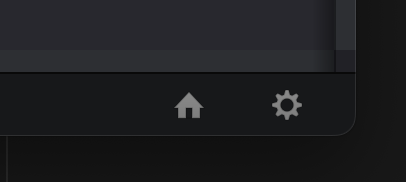
In DaVinci Resolve, click the home icon in the bottom right (which shows the same menu you get on launch)
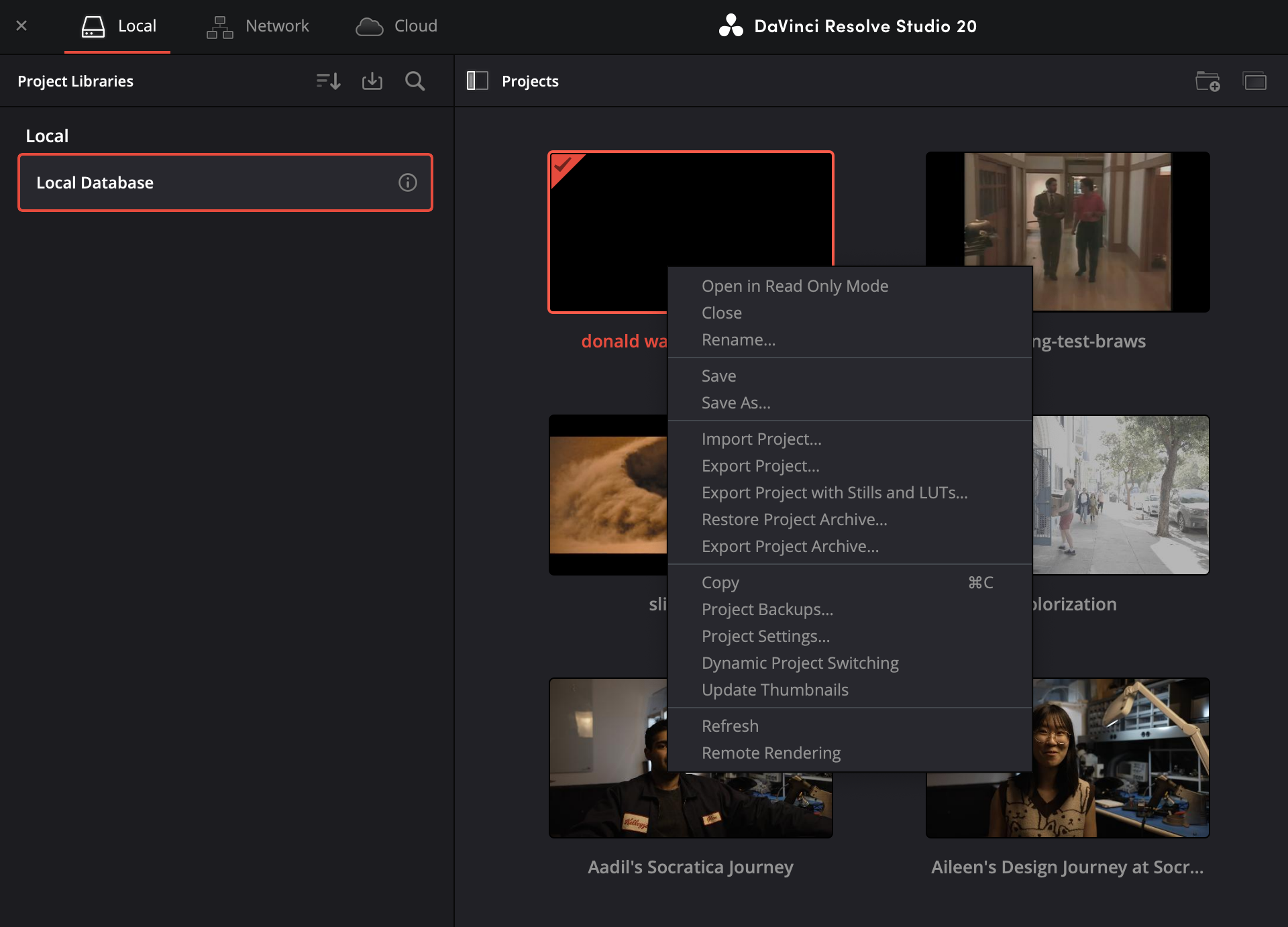
 Right-click the project you want to bring into Kino, then choose **Export Project Archive...**
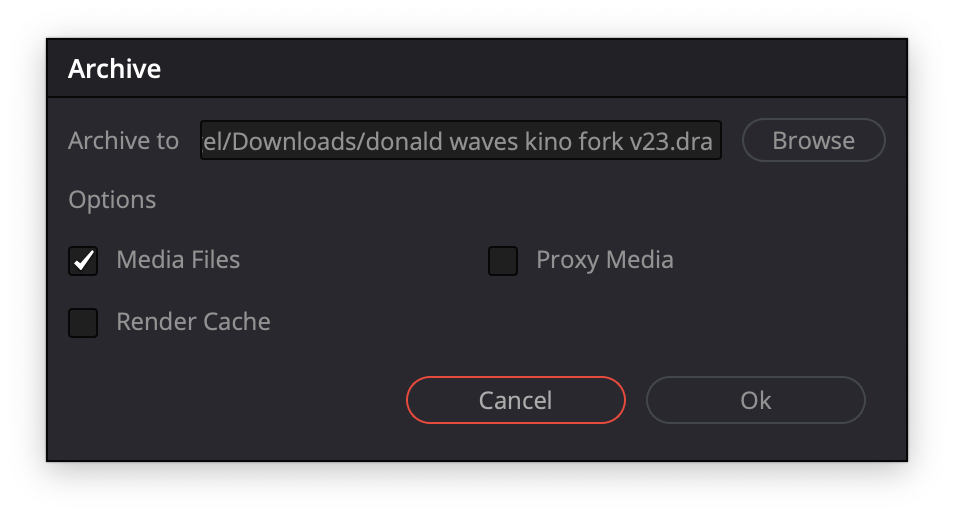
 Select a destination folder for your archive. Keep **Copy media files** checked to include linked media. You can uncheck **Render cache** and **Proxy media**.
 Click **Save** to create your project archive. This creates a `.dra` folder containing your project files and media.
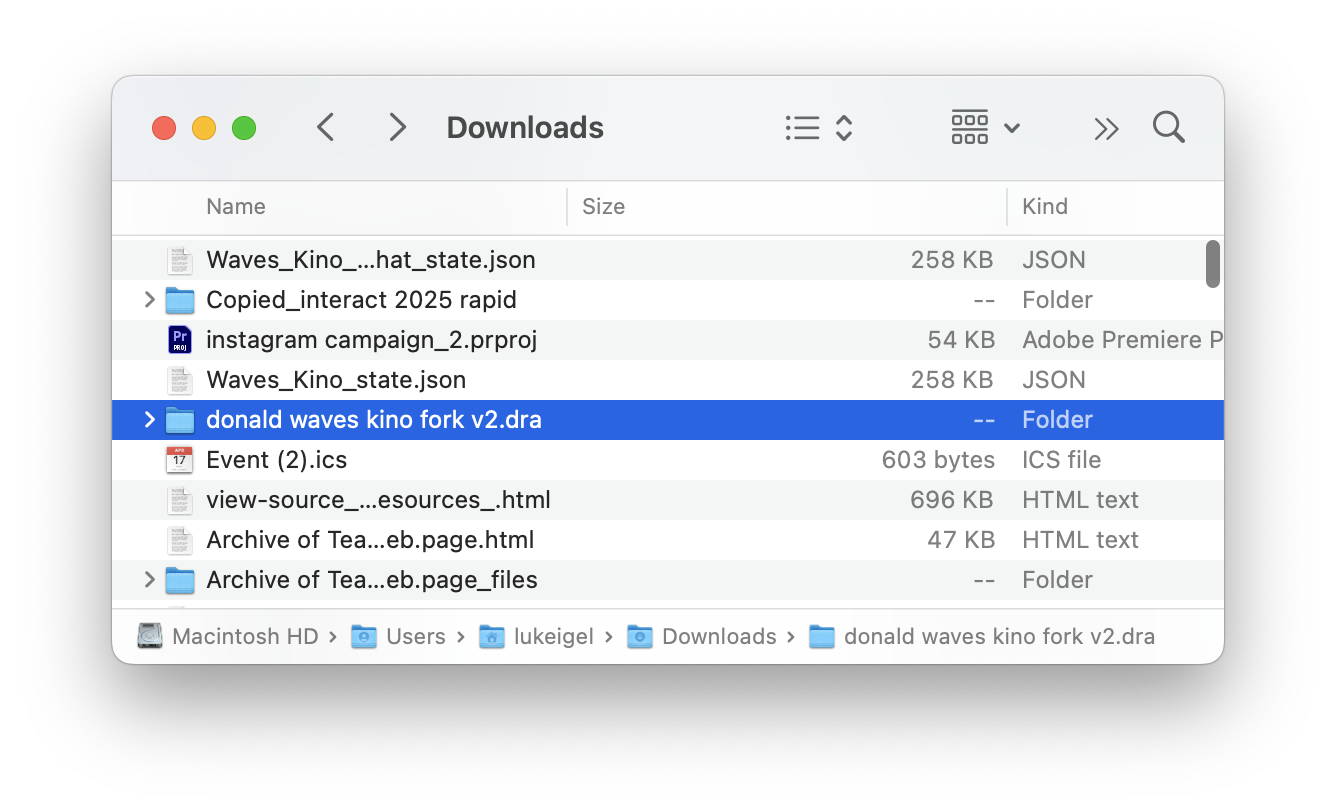 Open the import page in Kino and drag the entire `.dra` folder onto the drop zone. Kino will:
* Detect the DaVinci Resolve project
* Start ingesting media files in the background
* Parse and display your timeline
If your project has multiple timelines, select which one you want to import.
Enter a name for your new storyboard and click **Create Storyboard** to complete the import.
Kino matches timeline clips to your library by filename. Make sure the filenames in Kino match the original filenames used in your Resolve project.
***
## Manual import
If you already have the media in Kino, you can upload the `.drp` file directly.
***
## What gets imported
| Imported | Not Imported |
| -------------------------------------- | --------------------------------- |
| Clip positions on timeline | Color grades |
| Multiple video tracks | Transitions, effects, and plugins |
| Multiple audio tracks | Speed ramps (animated) |
| Source file references | Compound clips |
| Transform properties (scale, position) | Nested sequences |
| Timeline start normalization | Some animated transforms |
See the [DaVinci Resolve documentation](https://forum.blackmagicdesign.com/viewtopic.php?t=205947\&p=1070217) for more details on exporting project archives.
## Troubleshooting
#### Missing or incorrect properties
Reach out to [support@kino.ai](mailto:support@kino.ai) and include the Resolve version, the `.drp` file, and a screenshot of the timeline settings.
Open the import page in Kino and drag the entire `.dra` folder onto the drop zone. Kino will:
* Detect the DaVinci Resolve project
* Start ingesting media files in the background
* Parse and display your timeline
If your project has multiple timelines, select which one you want to import.
Enter a name for your new storyboard and click **Create Storyboard** to complete the import.
Kino matches timeline clips to your library by filename. Make sure the filenames in Kino match the original filenames used in your Resolve project.
***
## Manual import
If you already have the media in Kino, you can upload the `.drp` file directly.
***
## What gets imported
| Imported | Not Imported |
| -------------------------------------- | --------------------------------- |
| Clip positions on timeline | Color grades |
| Multiple video tracks | Transitions, effects, and plugins |
| Multiple audio tracks | Speed ramps (animated) |
| Source file references | Compound clips |
| Transform properties (scale, position) | Nested sequences |
| Timeline start normalization | Some animated transforms |
See the [DaVinci Resolve documentation](https://forum.blackmagicdesign.com/viewtopic.php?t=205947\&p=1070217) for more details on exporting project archives.
## Troubleshooting
#### Missing or incorrect properties
Reach out to [support@kino.ai](mailto:support@kino.ai) and include the Resolve version, the `.drp` file, and a screenshot of the timeline settings.