> ## Documentation Index
> Fetch the complete documentation index at: https://kino.ai/docs/llms.txt
> Use this file to discover all available pages before exploring further.
# People Detection
Kino detects people in your footage. Use people filters to find shots containing `@Ted`, or moments where `@Amy` is speaking.
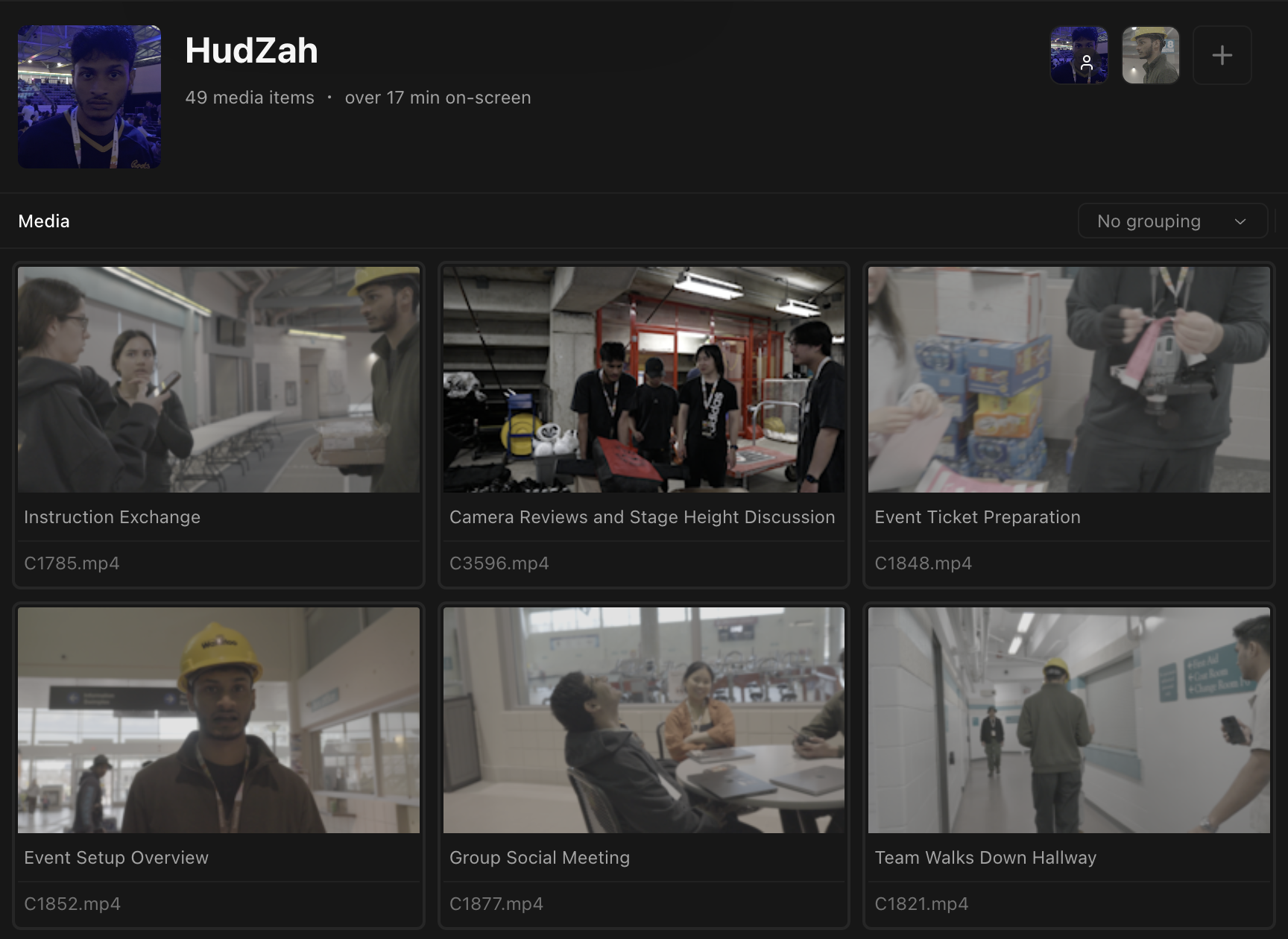 You can search, filter, and browse your Kino library by person.
## Teach Kino about a new person
Go to the `People` page and click the "New person" button or hit `P`.
Add a clear, high-quality picture from your clipboard with `Cmd + V`, or select an image from your computer.
Submit the photo. Kino will populate the page with footage containing that person.
Use well-lit photos for better detection.
You can search, filter, and browse your Kino library by person.
## Teach Kino about a new person
Go to the `People` page and click the "New person" button or hit `P`.
Add a clear, high-quality picture from your clipboard with `Cmd + V`, or select an image from your computer.
Submit the photo. Kino will populate the page with footage containing that person.
Use well-lit photos for better detection.