> ## Documentation Index
> Fetch the complete documentation index at: https://kino.ai/docs/llms.txt
> Use this file to discover all available pages before exploring further.
# Sequences
> Resolution presets, frame rates, and nested sequences
Every project in Kino is built from sequences. A sequence defines the canvas: resolution, frame rate, and the tracks that hold your clips.
 ## Resolution presets
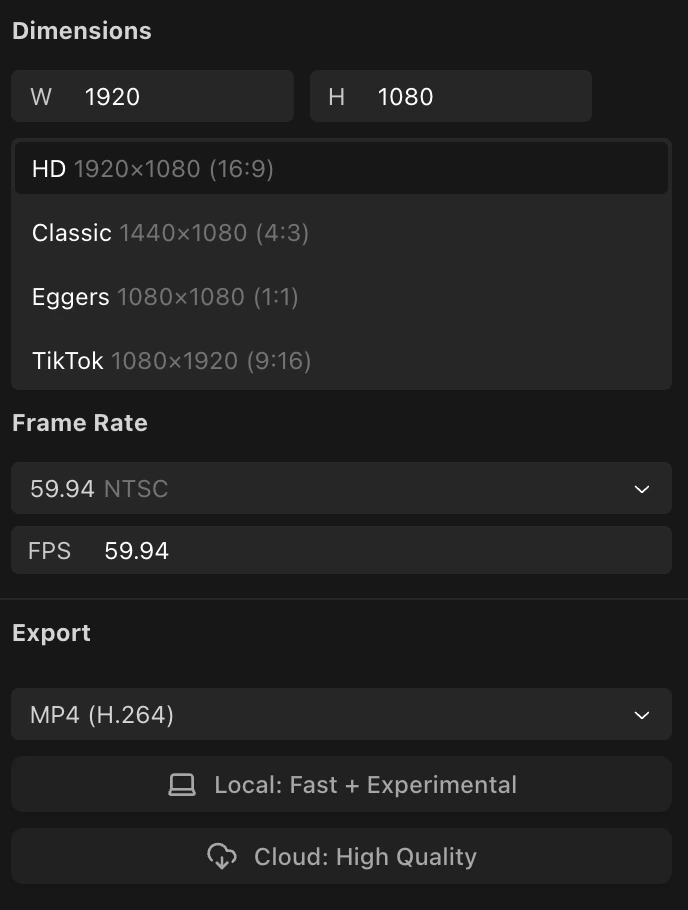
Open the **Composition Inspector** (select your sequence in the timeline) to pick a resolution:
| Preset | Resolution | Aspect ratio |
| ------- | ----------- | ------------ |
| HD | 1920 × 1080 | 16:9 |
| Classic | 1440 × 1080 | 4:3 |
| Eggers | 1080 × 1080 | 1:1 |
| TikTok | 1080 × 1920 | 9:16 |
## Frame rate
Each sequence has its own frame rate. Choose from common presets or type a custom value:
| Rate | Standard |
| ------ | --------- |
| 23.976 | NTSC Film |
| 24 | Film |
| 25 | PAL |
| 29.97 | NTSC |
| 30 | - |
| 59.94 | NTSC |
| 60 | - |
When you change the frame rate, Kino rescales all clip positions and durations to preserve their timing at the new rate.
## Subsequences
## Resolution presets
Open the **Composition Inspector** (select your sequence in the timeline) to pick a resolution:
| Preset | Resolution | Aspect ratio |
| ------- | ----------- | ------------ |
| HD | 1920 × 1080 | 16:9 |
| Classic | 1440 × 1080 | 4:3 |
| Eggers | 1080 × 1080 | 1:1 |
| TikTok | 1080 × 1920 | 9:16 |
## Frame rate
Each sequence has its own frame rate. Choose from common presets or type a custom value:
| Rate | Standard |
| ------ | --------- |
| 23.976 | NTSC Film |
| 24 | Film |
| 25 | PAL |
| 29.97 | NTSC |
| 30 | - |
| 59.94 | NTSC |
| 60 | - |
When you change the frame rate, Kino rescales all clip positions and durations to preserve their timing at the new rate.
## Subsequences
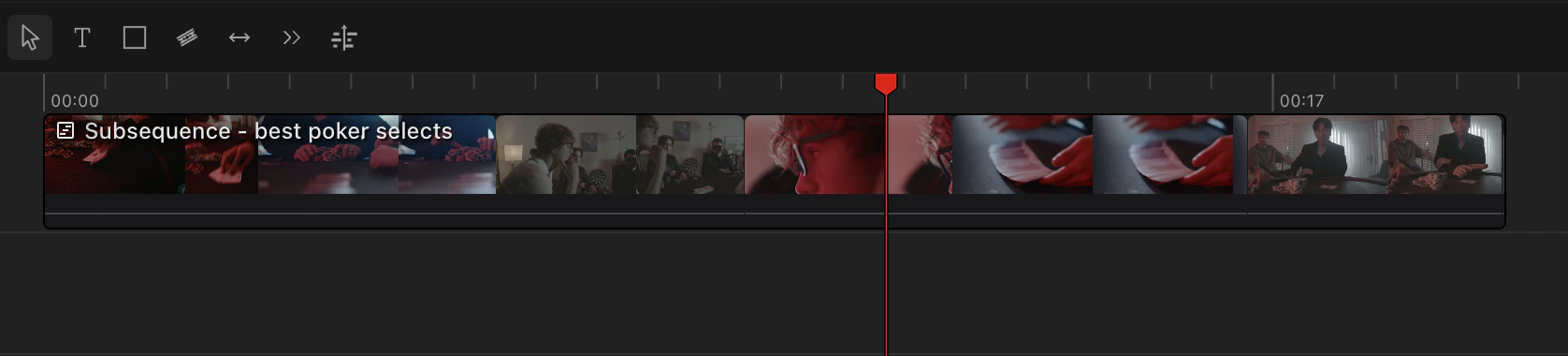 A sequence can contain other sequences. This allows you and the Kino agent to build modular edits: assemble a scene as its own sequence with its own frame rate, then drop it into a master timeline.
Each subsequence has independent resolution and frame rate settings. Select a subsequence in the timeline to see its composition settings in the inspector.
## Rendering and export
Kino can render exports directly in your browser. For many timelines, this avoids a server queue.
You can also render server-side if you prefer. Both methods produce the correct number of frames at every frame rate.
Browser-rendered exports at NTSC rates (23.976, 29.97, 59.94) accumulate a small timestamp drift toward the end of the file, about 3.6 ms per hour. A/V sync becomes noticeable (\~20 ms) around the 5.5-hour mark. For exports longer than a few hours at NTSC rates, use server-side rendering to achieve frame-accurate containers.
A sequence can contain other sequences. This allows you and the Kino agent to build modular edits: assemble a scene as its own sequence with its own frame rate, then drop it into a master timeline.
Each subsequence has independent resolution and frame rate settings. Select a subsequence in the timeline to see its composition settings in the inspector.
## Rendering and export
Kino can render exports directly in your browser. For many timelines, this avoids a server queue.
You can also render server-side if you prefer. Both methods produce the correct number of frames at every frame rate.
Browser-rendered exports at NTSC rates (23.976, 29.97, 59.94) accumulate a small timestamp drift toward the end of the file, about 3.6 ms per hour. A/V sync becomes noticeable (\~20 ms) around the 5.5-hour mark. For exports longer than a few hours at NTSC rates, use server-side rendering to achieve frame-accurate containers.