Custom panels
A custom panel is a tool your agent builds for one project, such as a take picker, a set of scopes or a music editor. It docks beside the canvas and timeline like Kino’s own panels, and your team can add a copy to their projects.
Turn on Dynamic panels
Go to Settings → Experimental and turn on Dynamic panels. Turn it on in each app and browser you use. Panels show in the desktop layout, not on phones.
Ask for a panel
Describe the tool in chat. The agent writes the panel and opens it in the view you’re in.
Build a panel with a waveform, vectorscope and RGB parade for the frame at the playhead.
Make a panel that lists the takes for each shot so I can pick one and put it on the timeline.
Change it
Ask in the same chat, for example “Add a 2x gain button to the scopes panel.” The open panel updates as soon as the agent saves.
What a panel can do
- Read the selected clips, the timeline, the playhead and the transcript.
- Play, pause and seek.
- Show your media library, the source viewer and a media picker.
- Change the selected clip, such as its volume, with the inspector’s controls.
- Edit the project, with each change in undo.
- Run the same actions as the command menu.
- Remember its own settings in each view.
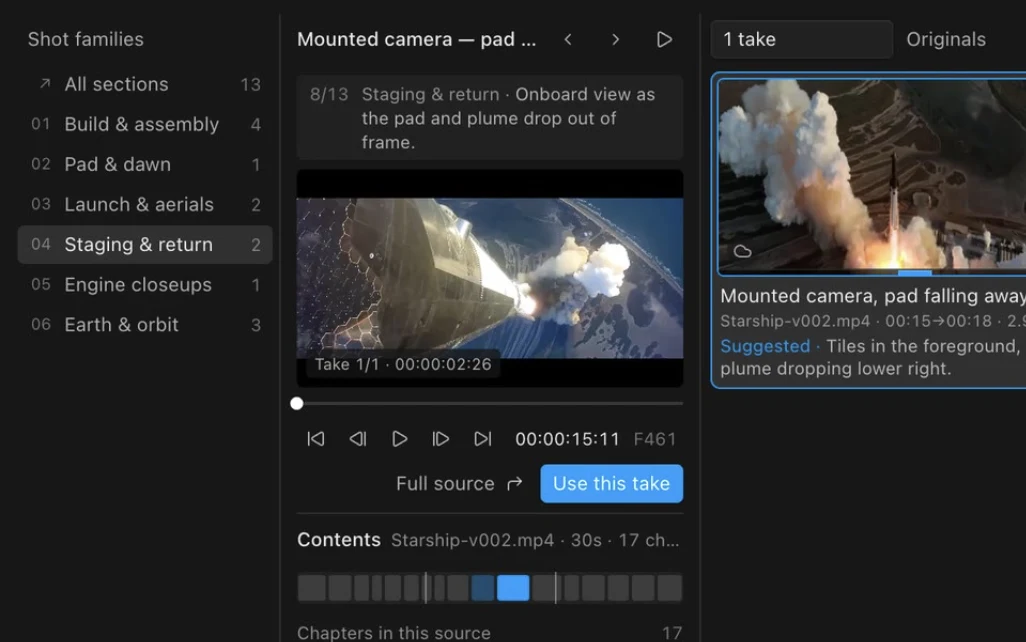
Take selector
Groups shots into families and places the take you pick.
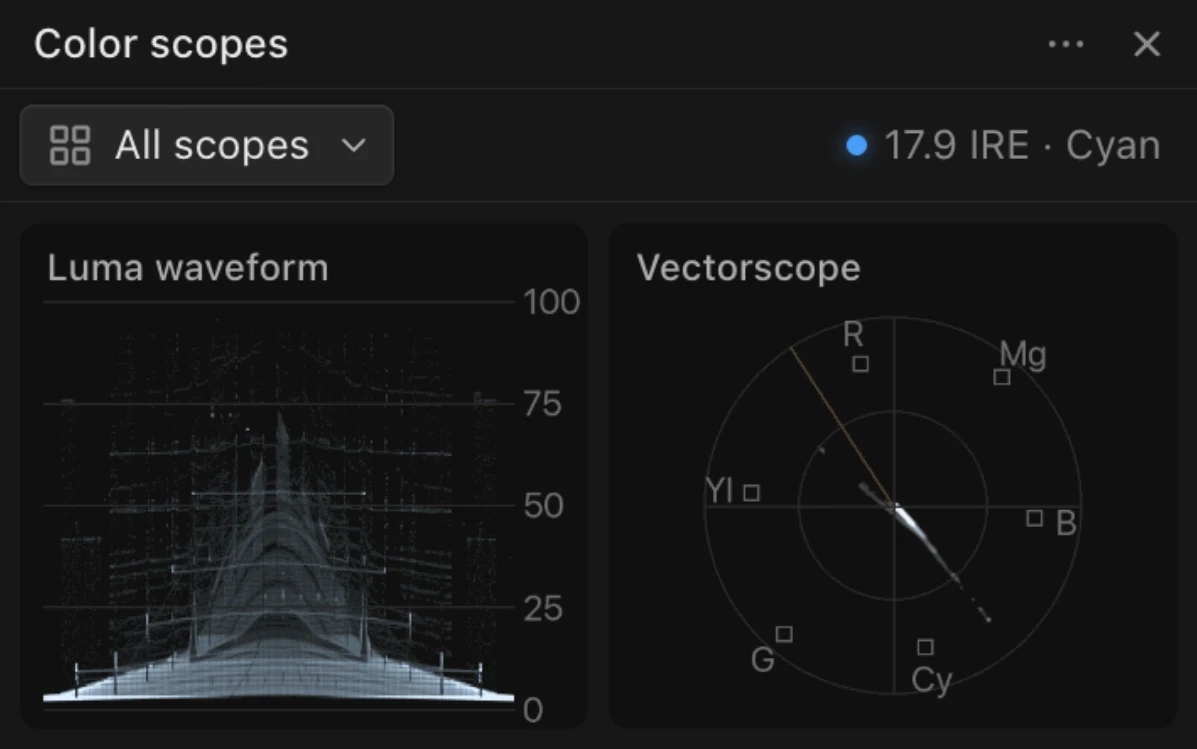
Color scopes
Waveform, vectorscope, parade and histogram for the frame at the playhead.
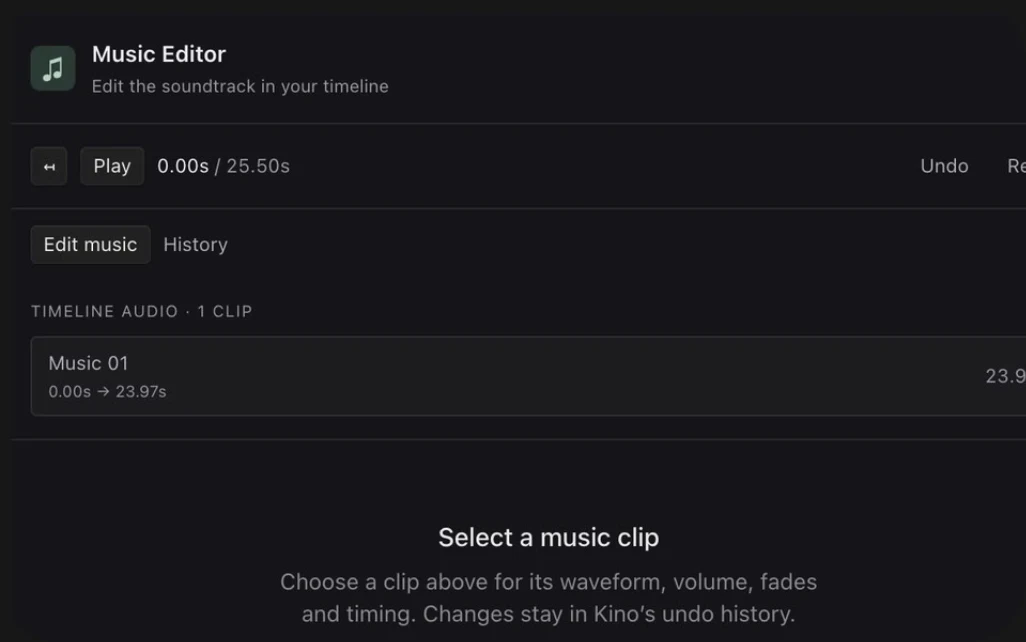
Music Editor
The soundtrack clips, with volume and fades for each.
Open and close panels
Hover over a view in the rail, click its layout button and open Panels. Kino’s panels come first, with custom panels below them. A check mark shows what’s open in this view; click a panel to open or close it.
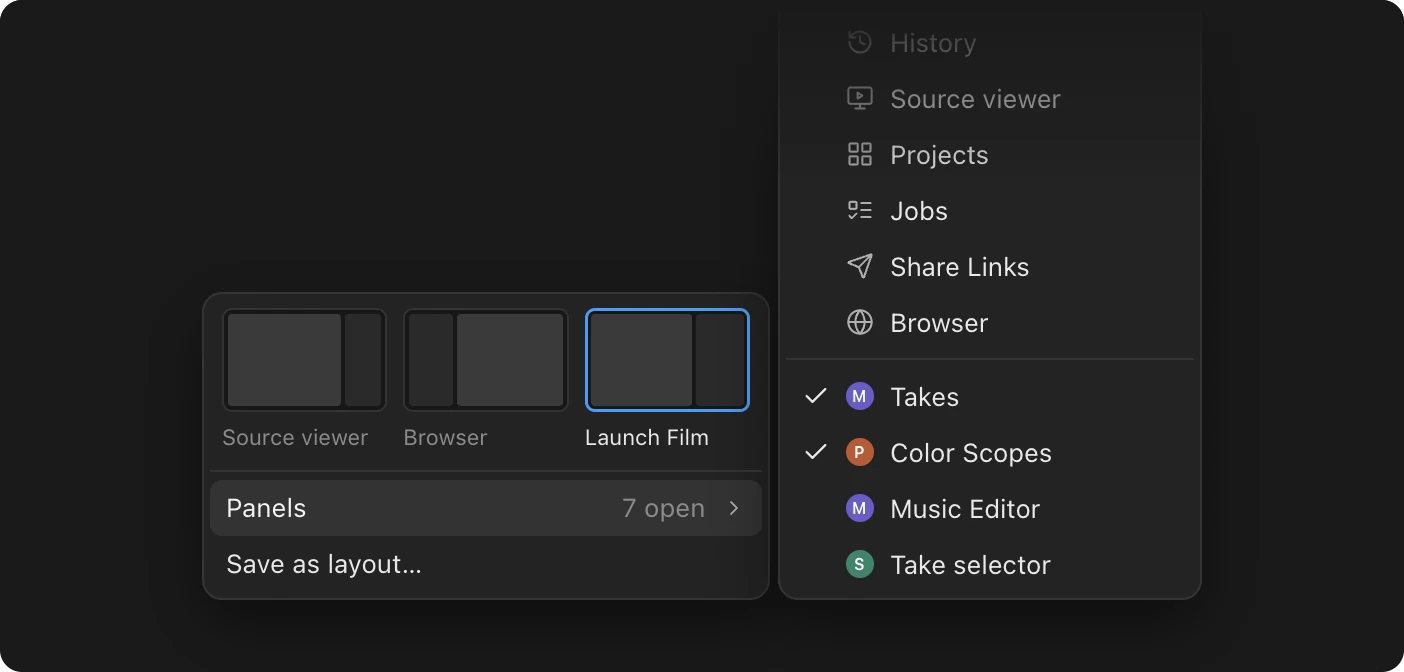
Each view keeps its own layout, so a panel can be open in one view and closed in another. Settings → Experimental → Your panels lists the custom panels in projects you’ve visited.
Move, reload and delete
Drag a panel by its header to dock it somewhere else. The … button in the header opens the panel’s menu.
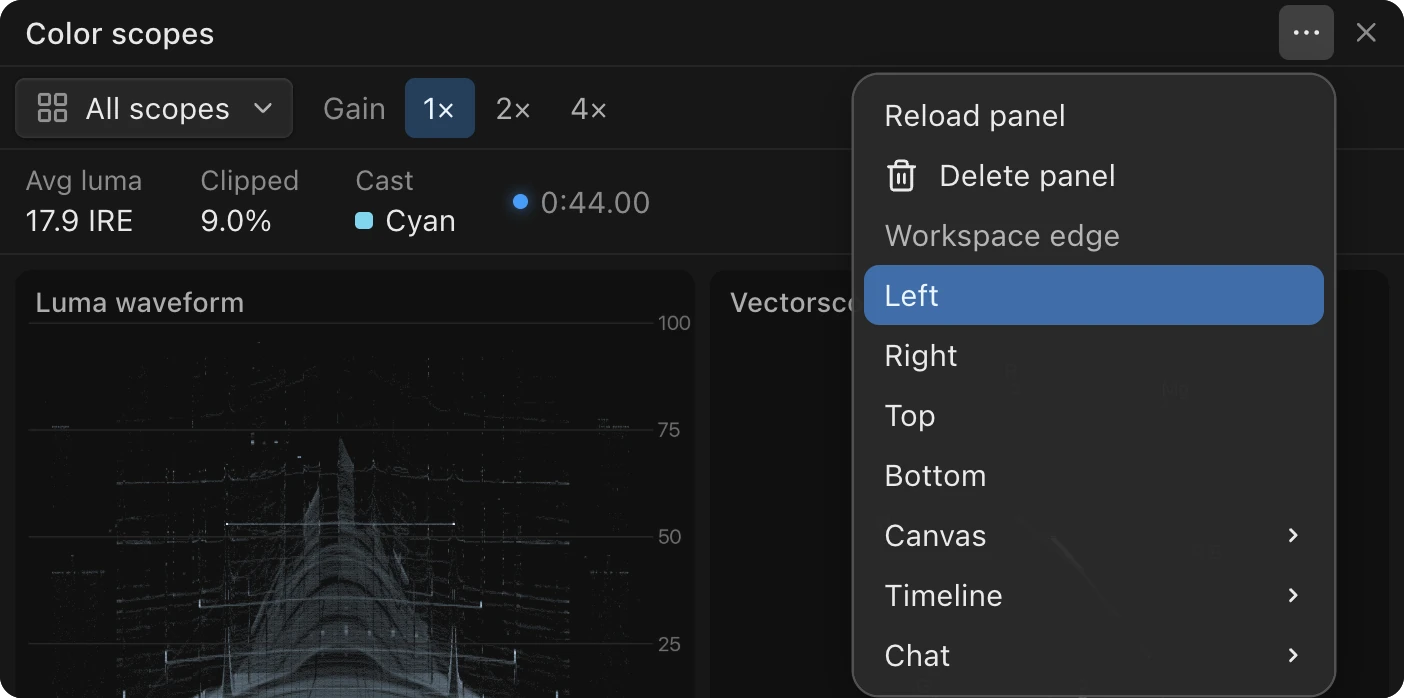
- Reload panel loads it again from its saved code.
- Delete panel removes it from the project. Undo brings it back.
- Workspace edge and the panel names below it move the panel to an edge or next to another panel.
The close button hides a panel without deleting it. If a panel’s code breaks, the panel shows the error; ask the agent to fix it, since it can read the same error.
Use your team’s panels
A panel anyone on your team builds, in any project, goes into your team’s panel library on its own. Team panels are listed at the bottom of the Panels menu with a picture of the person who made them.
Click one to add a copy to your project and open it. Your copy is separate, so editing it doesn’t change the original. Viewers can’t add team panels. You can also ask your agent to find a team panel and add it.
Where a panel is stored
A panel’s code is stored in the project, in a folder under /panels/.
It follows the project’s undo and version history. Custom panels are off while you preview an earlier version; go back to the live project to use them.