Footage and storage
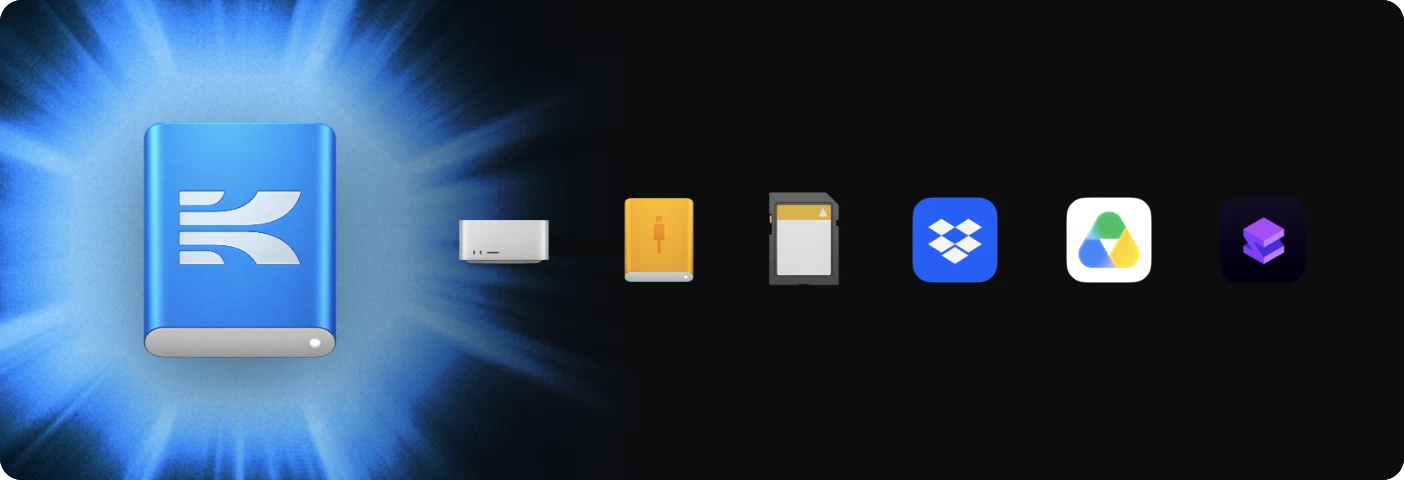
Kino indexes everything you bring in with AI: it transcribes every clip, describes each shot and recognizes the people in it. Agents are much better at editing when they know what’s in all your footage.
Kino keeps a 720p proxy of every clip in the cloud by default, so your team can play it on any computer. Originals stay on your drive until you upload them.
 Original
You, with the drive
720p proxyEveryone else
To upload an original, right-click the clip in the library and choose Upload original.
Search and filter your library
Type in the search field at the top of the media panel to find clips by what’s said in them or what’s on screen. Each clip marks where the match is on its strip, and Add to timeline puts just those moments on your timeline. Choose Says or Shows to search only the transcript or only the picture, and add a person to find the clips they’re in. ⌘K searches transcripts, people and bins across your whole organization.

Click Filter to narrow the library by type, duration, codec, camera, lens, frame rate, shoot day and more. Each value shows how many clips have it. Save a filter and it becomes a smart bin in your bin tree, which fills in as new footage arrives.

When the drive isn’t connected
Other editors show Media offline when a drive is unplugged. Kino keeps playing from the proxy, so projects still open and play.
Upload the originals to let your teammates render in full quality.
Media offline
メディアオフライン
Média hors ligne
Offline-Medien
脱机媒体文件
Medios sin conexión
Oggetto multimediale non in linea
미디어 오프라인
Медиаданные в автономном режиме
Mídia offline
 A012C004_surf.braw
Storage per plan
Free includes 5 GB. Pro includes 20 GB per editor, shared by the whole team. Proxies, uploaded originals and imports from Dropbox, Google Drive or Shade count toward it; originals on your own drives don’t.