

Archive import
Export a Project Archive from Resolve, then drag the archive into Kino.Open Kino's import page
Visit Kino’s import page to begin importing your DaVinci project.
Go home
In DaVinci Resolve, click the home icon in the bottom right (which shows the same menu you get on launch)
Open 'Export Project Archive...' menu
Right-click the project you want to bring into Kino, then choose Export Project Archive…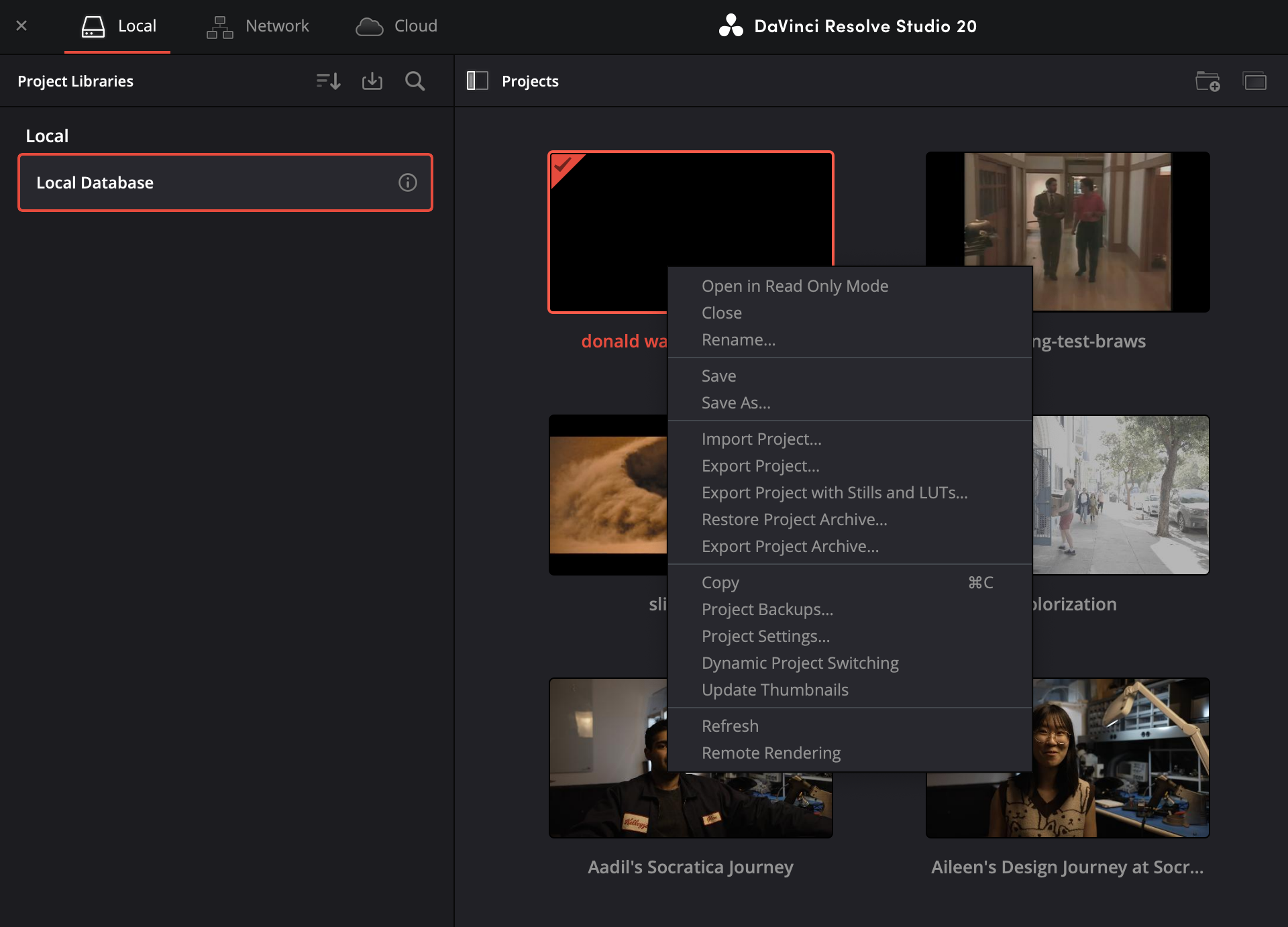
Choose export settings
Select a destination folder for your archive. Keep Copy media files checked to include linked media. You can uncheck Render cache and Proxy media.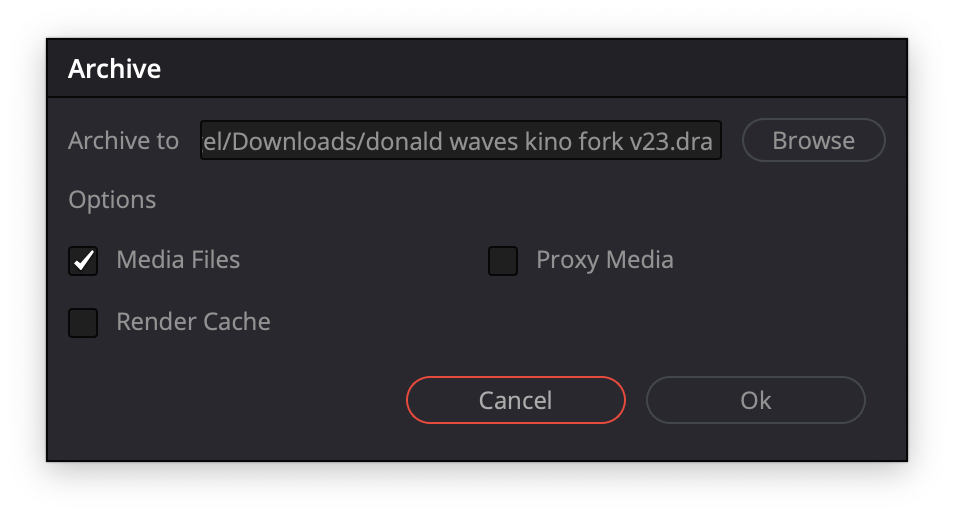
Save the archive
Click Save to create your project archive. This creates a 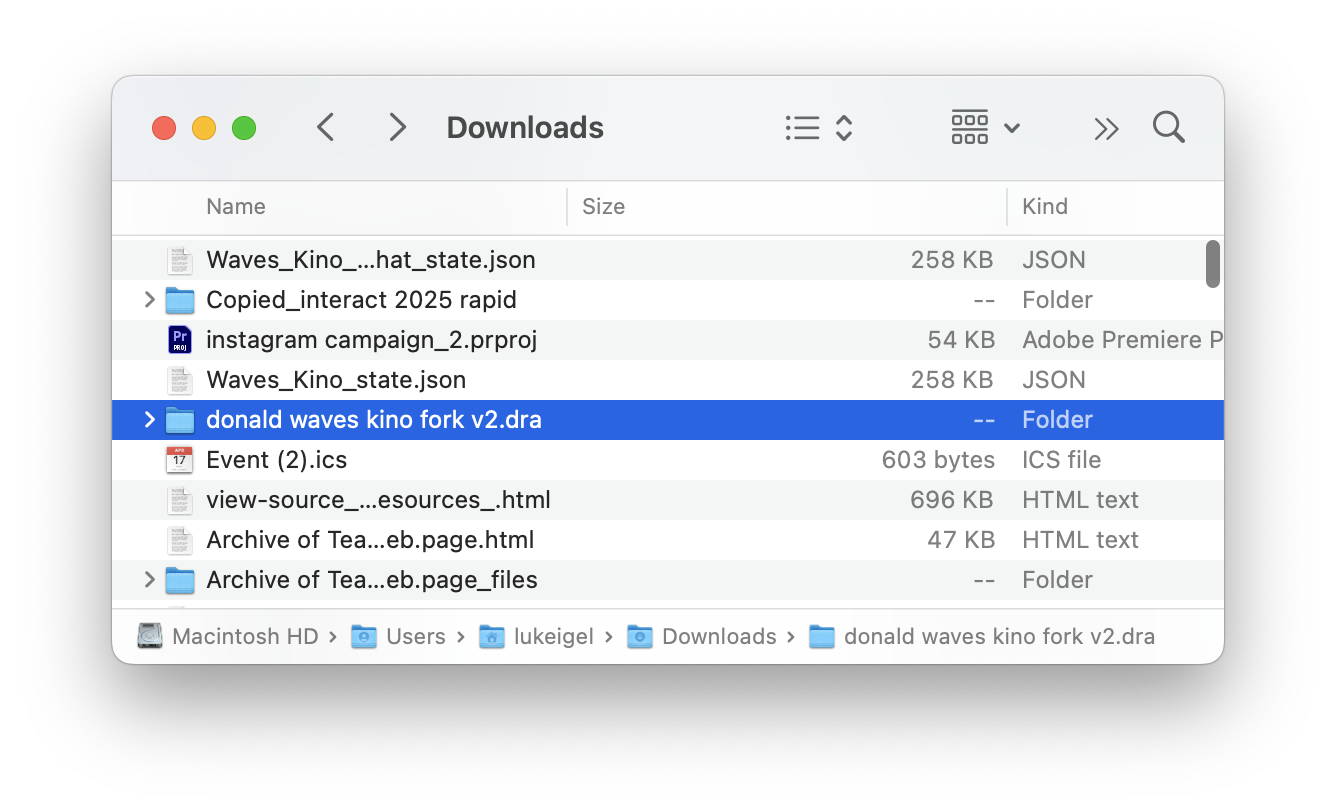
.dra folder containing your project files and media.Drag into Kino
Open the import page in Kino and drag the entire
.dra folder onto the drop zone. Kino will:- Detect the DaVinci Resolve project
- Start ingesting media files in the background
- Parse and display your timeline
Manual import
If you already have the media in Kino, you can upload the.drp file directly.
What gets imported
| Imported | Not Imported |
|---|---|
| Clip positions on timeline | Color grades |
| Multiple video tracks | Transitions, effects, and plugins |
| Multiple audio tracks | Speed ramps (animated) |
| Source file references | Compound clips |
| Transform properties (scale, position) | Nested sequences |
| Timeline start normalization | Some animated transforms |
Troubleshooting
Missing or incorrect properties
Reach out to support@kino.ai and include the Resolve version, the.drp file, and a screenshot of the timeline settings.