

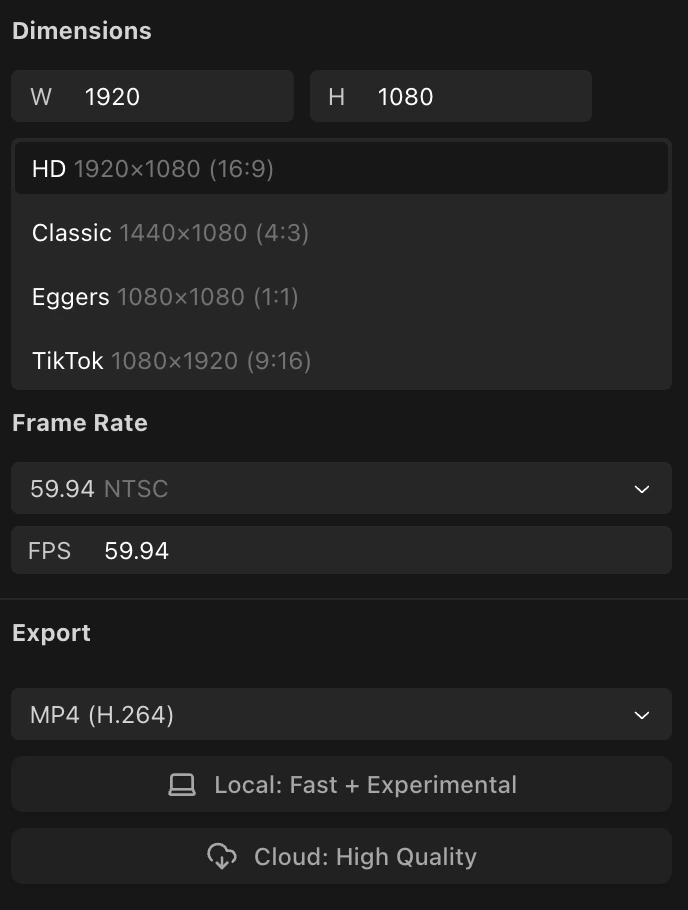
Resolution presets
Open the Composition Inspector (select your sequence in the timeline) to pick a resolution:Frame rate
Each sequence has its own frame rate. Choose from common presets or type a custom value:
When you change the frame rate, Kino rescales all clip positions and durations to preserve their timing at the new rate.
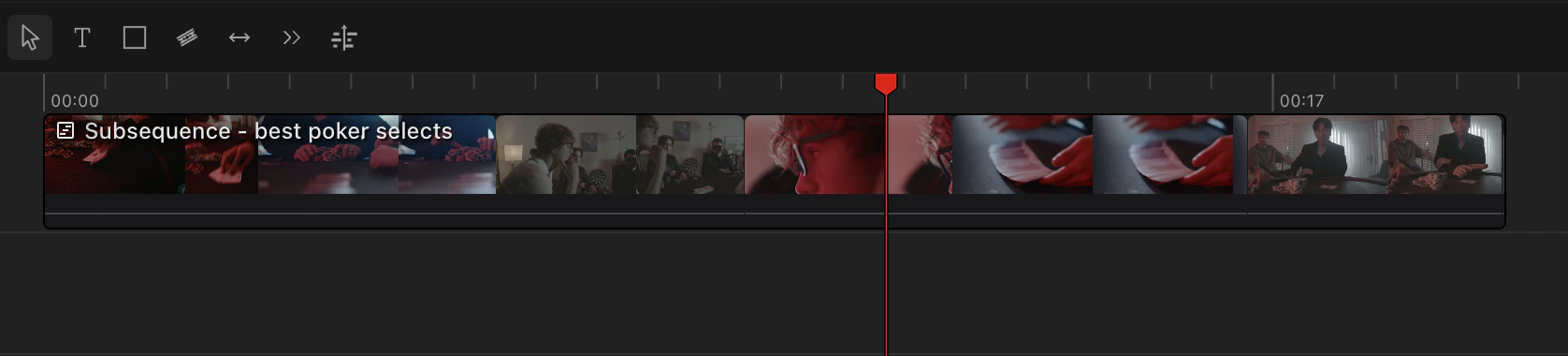
Subsequences
Rendering and export
Kino can render exports directly in your browser. For many timelines, this avoids a server queue. You can also render server-side if you prefer. Both methods produce the correct number of frames at every frame rate.Browser-rendered exports at NTSC rates (23.976, 29.97, 59.94) accumulate a small timestamp drift toward the end of the file, about 3.6 ms per hour. A/V sync becomes noticeable (~20 ms) around the 5.5-hour mark. For exports longer than a few hours at NTSC rates, use server-side rendering to achieve frame-accurate containers.